

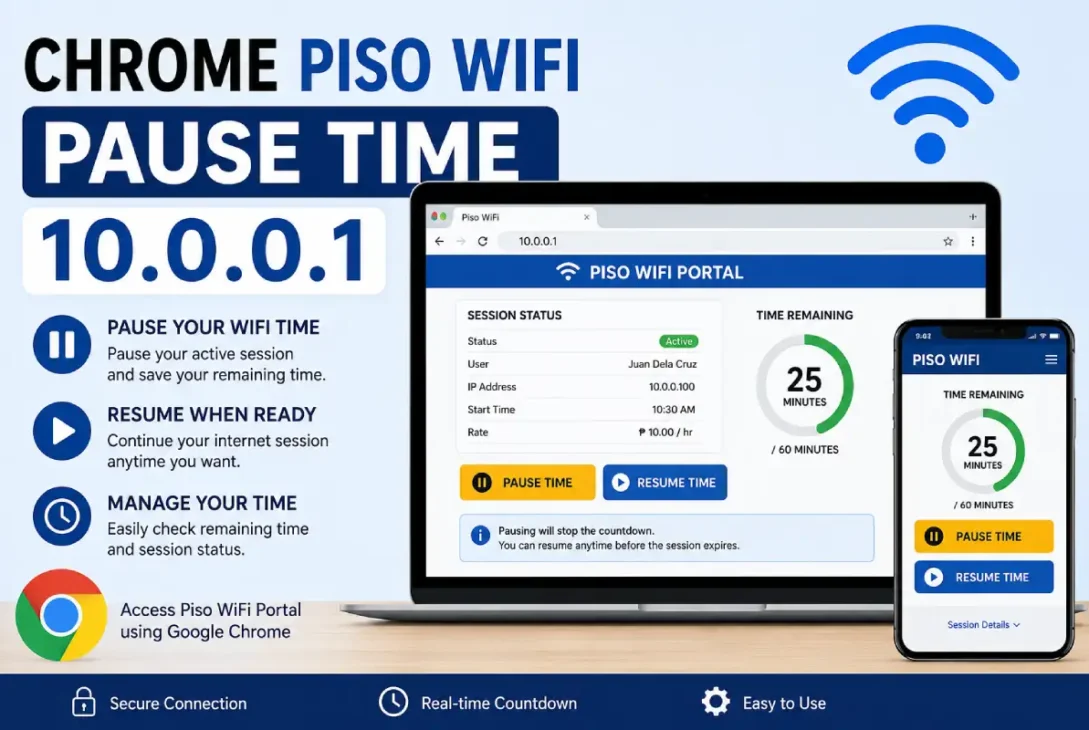
If you typed in “Chrome Piso WiFi pause time 10.0.0.1”, chances are you’re trying to figure out how to pause, resume, or control your connection to your Piso WiFi using a web browser. You put together three elements in this search: Chrome, which is the name of your web browser most likely to be used to access the Piso WiFi system, and 10.0.0.1, which is an address used for accessing things on your own private network such as your router or the Piso WiFi system admin interface.
Some people find that the ability to pause your connection time is essential. Let’s say that you purchased a Piso WiFi unit with internet usage, but you will not use it in the short to medium term. Why waste your Piso WiFi hours when you can pause and restart them at another time, as the Piso WiFi is designed and configured?
Nonetheless, every Piso WiFi will work a bit differently from another; thus, it is much more advantageous for anyone to know the functions performed by 10.0.0.1, the pause function, and the Piso wifi access portal rather than memorise any web address (URL).
What Is Piso WiFi?
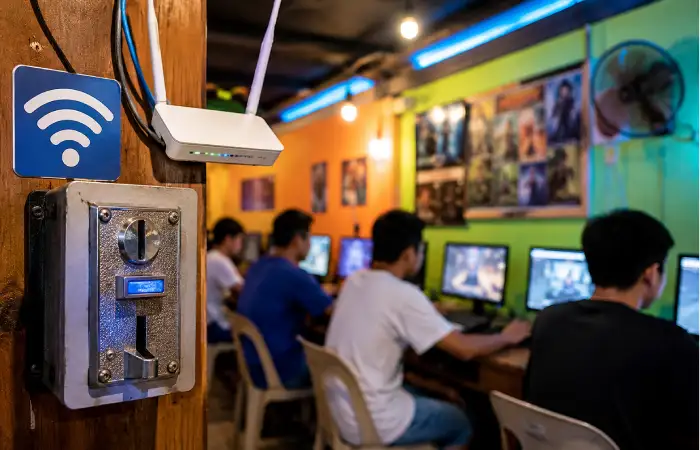
Piso WiFi is known as a “public WiFi vending system”. Most people refer to it as a cheaper way of using the Internet. The term “piso” implies using Philippine pesos; thus, some of these machines can accept coins or buy credits on the connected vending machine / captive portal.
A typical Piso WiFi setup may include:
- A Wi-Fi access point
- A router or hotspot controller
- A captive portal
- A coin-operated or payment mechanism
- A session timer
- A pause/resume function
- A local administration interface
The exact features depend on the hardware and software installed by the operator.
What Does 10.0.0.1 Mean?
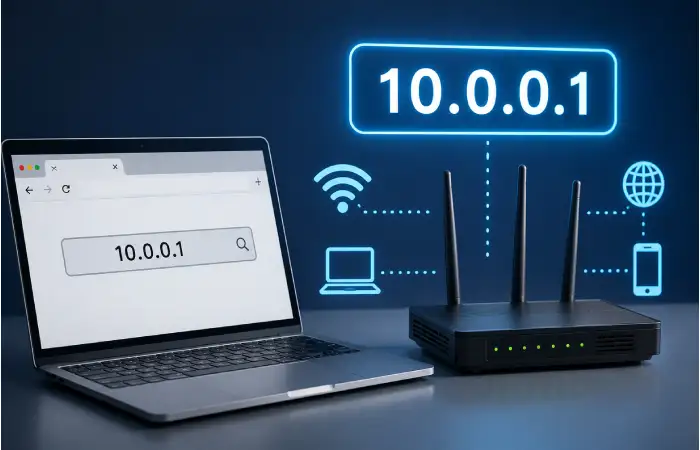
10.0.0.1 is a private IPv4 address frequently used by routers and local network equipment. It is not a normal public website address. Instead, it can point to a device inside a local network.
When you type an address such as 10.0.0.1 into Chrome, your device attempts to communicate with the network device using that address.
For example:
Chrome → 10.0.0.1 → Local router/Piso WiFi interface
This is fundamentally different from visiting an ordinary internet website. You generally need to be connected to the appropriate Wi-Fi network for the address to work.
It is also important to understand that not every Piso WiFi network uses 10.0.0.1. The operator may configure a different local address.
What Is Chrome Used for With Piso WiFi?
Google Chrome is simply the browser used to open the Piso WiFi portal or local management page.
After connecting to the network, Chrome may automatically display a captive portal. If that does not happen, the user may need to open the appropriate local portal address supplied by the network.
Chrome itself does not control the Piso WiFi timer.
The Piso WiFi system controls the session, while Chrome provides the interface through which the user interacts with it.
This distinction is important because changing browser settings normally cannot change the amount of internet time purchased from the Piso WiFi system.
What Is Piso WiFi Pause Time?
The pause time feature is designed to temporarily stop an active internet session.
Imagine that you purchased 60 minutes of access but only used 20 minutes before leaving the area. If the Piso WiFi system supports pausing, you may be able to stop the session and preserve the unused portion.
For example:
| Feature | Meaning |
| Active time | Internet session is currently running. |
| Pause | Session is temporarily stopped. |
| Resume | Paused session starts again. |
| Remaining time | Unused access time |
| Expiration | Session is no longer available. |
The exact rules are determined by the particular Piso WiFi configuration.
Why Do Users Search for “Pause Time 10.0.0.1”?
The search phrase “chrome Piso WiFi pause time 10.0.0.1” is usually associated with people trying to find the local page where their session can be managed.
A common situation looks like this:
- The user connects to Piso WiFi.
- Chrome opens the captive portal.
- The user purchases internet access.
- A timer starts counting down.
- The user wants to temporarily stop the session.
- The user searches for the Piso WiFi pause page or 10.0.0.1.
- The user attempts to pause or resume the connection.
The important point is that the pause option must be supported by the particular hotspot system. If the operator has disabled the feature, entering 10.0.0.1 will not magically create a pause function.
How to Open 10.0.0.1 in Chrome
If the Piso WiFi operator uses 10.0.0.1 as the local gateway, you can try opening it through Chrome.
First, connect your phone, tablet, or computer to the relevant Piso WiFi network.
Then open Chrome and enter:
10.0.0.1
in the address bar.
Do not put the address into Google’s search box. Enter it directly into the browser’s address bar.
If the local interface is configured at that address, the appropriate page may load.
However, if nothing appears, several explanations are possible. Your device may not be connected to the correct network, the router may use another IP address, the administration interface may be restricted, or the Piso WiFi system may use a separate captive-portal address.
How the Pause Function Generally Works
The basic idea behind a pause feature is straightforward.
When your session is active, the system records your remaining access time. If you select Pause, the system attempts to stop counting down the usable session period.
When you later select Resume, the timer begins counting again.
For example, suppose a system gives you 30 minutes.
You use 10 minutes and then pause.
Your remaining balance would theoretically be:
30 minutes − 10 minutes = 20 minutes
When you resume, those remaining 20 minutes can continue according to the rules of the system.
This example is only illustrative. Some systems may have minimum pause periods, maximum pause periods, session expiration rules, or other restrictions.
Pause Time vs. Internet Disconnection
One common misunderstanding is assuming that simply disconnecting from Wi-Fi automatically pauses the timer.
That is not necessarily true.
There is a major difference between:
Disconnecting from Wi-Fi:
Your device stops communicating with the access point.
Pausing a session:
The Piso WiFi system intentionally suspends the session timer or access period.
If you simply turn off Wi-Fi without using the system’s pause mechanism, your purchased time may continue to run.
Therefore, users should not assume that closing Chrome, locking the phone, or disconnecting from Wi-Fi preserves their remaining access time.
Comparison: Active, Paused, and Expired Sessions
| Session status | Internet access | Timer behavior | Can normally resume? |
| Active | Available | Counting down | Yes |
| Paused | Temporarily unavailable | May stop | Usually, if supported |
| Expired | Unavailable | Finished | No |
The exact behavior depends on the Piso WiFi software and operator configuration.
What Does “10.0.0.1” Have to Do With the Timer?
The IP address itself does not represent your remaining internet time.
Instead, it may provide access to a web-based interface where the network’s services can be viewed or managed.
Think of 10.0.0.1 as an address, rather than a timer.
The timer is controlled by the hotspot or network-management system behind that address.
This is why repeatedly refreshing 10.0.0.1 will not necessarily increase, reset, or restore your purchased internet time.
Why 10.0.0.1 May Not Open
If Chrome says that the page cannot be reached, do not immediately assume that your phone or browser is broken.
Several things can cause the problem.
You Are Not Connected to the Correct Wi-Fi
Private IP addresses are local. If you are using mobile data or another Wi-Fi connection, the address may not be reachable.
Turn off mobile data temporarily if necessary and make sure you are connected to the intended Piso WiFi network.
The Network Uses Another IP Address
A Piso WiFi installation does not have to use 10.0.0.1.
The gateway might use another private address, depending on how the operator configured the equipment.
The Management Page Is Restricted
The operator may prevent ordinary customers from accessing administrative functions.
This is especially important because the customer session interface and administrator interface are not necessarily the same thing.
Captive Portal Problems
Sometimes the internet connection works differently from a standard home Wi-Fi network. A captive portal may need to authenticate your device before normal internet access begins.
In such situations, opening an ordinary website may redirect you to the portal.
Common Problems With Piso WiFi Pause Time
Users can encounter several problems when trying to pause their session.
One of the most common is that the pause button is unavailable. This generally means that the system does not provide the feature to that user or that the operator has disabled it.
Another issue occurs when the timer continues despite the user believing the connection has been paused. This can happen if the user simply disconnected from Wi-Fi instead of activating the actual pause feature.
A third problem is an expired session. Once the access period has expired, the pause function generally cannot restore it.
Browser caching can also create confusing behavior. Chrome may display an older version of a captive-portal page, particularly when the network uses temporary session information.
Safe Troubleshooting Steps
If the Piso WiFi pause feature is not working, start with simple troubleshooting rather than changing router settings.
1. Check the Wi-Fi Connection
Confirm that your device is connected to the correct Piso WiFi network.
2. Open the Local Address
If the operator has instructed users to use 10.0.0.1, enter that address directly into Chrome.
3. Check the Session Page
Look for information such as remaining time, session status, or a pause/resume option.
4. Refresh the Portal
A simple refresh can sometimes update an outdated session display.
5. Reconnect Carefully
If the portal stops responding, disconnect and reconnect to the Wi-Fi network.
Avoid repeatedly reconnecting if you are unsure whether your session timer continues while disconnected.
6. Ask the Network Operator
If the pause function is missing, the operator is the best source of information because they control the system’s configuration.
Is 10.0.0.1 a Public Website?
No.
The address 10.0.0.1 is a private network address. It is intended for communication within local networks.
That means you cannot normally access someone else’s router simply by entering 10.0.0.1 from anywhere on the internet.
Your device must have a network path to a device using that private address.
This is also why the same address can appear in completely different networks. A home router, business network, or hotspot system can potentially use the same private address without creating a global conflict.
Can Chrome Increase Piso WiFi Time?
No. Chrome does not legitimately add internet time to a Piso WiFi session.
The browser is only the interface.
Your available time is controlled by the network’s authentication and session-management system.
If you see websites or applications claiming that a particular Chrome trick can generate unlimited Piso WiFi time, treat such claims cautiously. They may be misleading, unsafe, or designed to collect personal information.
The safest approach is to use the official interface provided by the network operator.
Can You Pause Without an Official Pause Button?
Generally, you should not assume that there is a hidden browser command that can pause your session.
A legitimate pause feature is normally implemented by the network’s software.
If the portal provides a Pause button, use that function. If it does not, disconnecting from the network is not necessarily equivalent to pausing.
This distinction can save users from accidentally losing their remaining access time.
Customer Interface vs. Administrator Interface
Another important distinction is between a customer portal and an administrator dashboard.
The customer portal is designed for ordinary users. It may show:
- Remaining time
- Connection status
- Pause/resume controls
- Access information
- Session details
An administrator dashboard may provide much broader controls, including network configuration, user management, pricing, vouchers, and system settings.
Users should not attempt to access or modify administrative settings without authorization.
Changing router or hotspot configuration can disrupt the entire network.
Quick Comparison of Common Terms
| Term | Simple meaning |
| Chrome | Web browser used to access the portal |
| Piso WiFi | Public Wi-Fi access/vending system |
| 10.0.0.1 | Private IP address that may be used by network equipment |
| Captive portal | Web page used to authenticate or manage access |
| Pause time | Temporary suspension of an eligible session |
| Resume | Restarting a paused session |
| Remaining time | Unused access period |
Tips for Getting the Most From a Piso WiFi Session
Use the pause function deliberately if your Piso WiFi installation has it. If, for example, you expect to step away from your phone for a few minutes, use the pause function before you do rather than counting on just disconnecting your phone to stop the time. The page should remain open until you see the status change.
It also pays to be aware that each Piso WiFi install could function differently.
The tips that work on one install may not necessarily apply to another. And definitely do not mistake local IPs for general Piso WiFi control pages. 10.0.0.1 is simply one possibility of what a local address can be.
Frequently Asked Questions
What is 10.0.0.1 used for in Piso WiFi?
It may be used as the local address for a router, hotspot controller, or web interface. The exact purpose depends on the network configuration.
Can I use Chrome to pause Piso WiFi?
Chrome can display and interact with a pause function if the Piso WiFi system provides one. Chrome itself does not control the timer.
Does disconnecting Wi-Fi pause my Piso WiFi time?
Not necessarily. Unless the system specifically treats disconnection as a pause, your session may continue counting down.
Why does 10.0.0.1 not work?
The network may use another address, your device may not be connected correctly, or the interface may not be available to customers.
Can I recover expired Piso WiFi time?
Normally, an expired session cannot simply be restored through Chrome. The network operator determines the available recovery options.
Is 10.0.0.1 the same on every Piso WiFi network?
No. Private IP addresses are configurable, so different installations can use different addresses.
Final Thoughts
The search term “Chrome Piso WiFi pause time 10.0.0.1” can sound more complicated than it really is. Chrome is the browser, 10.0.0.1 is a possible local network address, and the pause feature is a function provided by the Piso WiFi system.
The most important thing to remember is that the network controls the session, not the browser.
If your Piso WiFi portal provides a pause option, use the official pause control and confirm that your session status changes. If 10.0.0.1 does not open, verify that you are connected to the correct network and remember that the installation may use a different local address.
Also Read: https://www.nextleveltechie.com


 Welcome To Next Level Techie, For any queries you can contact us at :